分类 服务器 下的文章

使用宝塔很长时间,很早就发现宝塔安装的FTP不能使用被动模式。也尝试过解决,之前以为是端口不通,但开放端口后,发现还是不行。由于时间问题,也没再深入去解决,毕竟还可以用主动模式。

最近开始使用起vscode,然后安装了sftp同步插件,但发现同步文件非常慢,每次修改完文件都要十多秒才能把文件上传上去,效率太慢了。
于是打开调试模式,排查问题,最后发现这个插件不能指定使用主动模式,只能被动模式失败后才切换到主动模式,所以每次同步文件都要十多秒。
关键日志:

命令:    PASV
响应:    227 Entering Passive Mode (172,18,13,228,154,214)

客户端发出PASV被动模式命令,服务器返回了一个VPC内网IP,客户端尝试连接这个内网IP,但因为不是同一个内网,所以是连接不上的,指导超时才切换成主动模式。

服务器有两个IP,一个VPC内网IP,一个外网IP,pure-ftpd优先获取到了内网IP告知客户端将其作为被动模式IP,所以导致了被动模式不能使用的问题。
这种情况,我们只需要在配置文件里指定被动模式IP即可解决。编辑pure-ftpd的配置,搜索ForcePassiveIP,取消注释这行配置,修改IP为你的服务器外网IP。

这里假设你的服务器IP为8.8.8.8
ForcePassiveIP 8.8.8.8

保存,重启服务器,over

如果还是不行,那么要看看防火墙和安全组有没有放行被动模式的端口,宝塔安装的pure-ftpd软件的被动模式端口默认是3900040000,所以要先在防火墙和服务器安全组里放通这个端口范围。

服务器安全组是指阿里云或腾讯云的服务器,其它云服务器厂商基本都有

自己使用的服务器,为了方便远程修改同步文件,特地去安装 ftp 服务器有点浪费。linux 服务器自带 sftp 功能,也能满足文件上传下载的功能,所以,整起!

安装宝塔面板后,系统里面已经有www用户了,但是是没有设置密码的,所以我们先设置下密码。

sudo passwd www

然后输入两次密码即可完成密码设置

Changing password for user www.
New password:
Retype new password:
passwd: all authentication tokens updated successfully.

编辑openssh配置文件

vim /etc/ssh/sshd_config

接着在配置文件最后面新增以下配置

Match User www
    # 限制仅能访问该目录及其下级
    ChrootDirectory /www/wwwroot
    # 禁止 X11 转发
    X11Forwarding no
    # 禁止 TCP 端口转发
    AllowTcpForwarding no
    # 禁止使用终端
    PermitTTY no
    # 强制只能使用 SFTP
    ForceCommand internal-sftp

保存配置文件,然后重启openssh服务

service sshd restart

大功告成

线上的环境,客户突然反馈不能使用,经过测试,发现了下文中的报错信息。从报错信息中,大概可以看出,Redis快照保存失败,导致无法正常使用。

以下是报错返回的报错信息

MISCONF Redis is configured to save RDB snapshots, but it is currently not able to persist on disk. Commands that may modify the data set are disabled, because this instance is configured to report errors during writes if RDB snapshotting fails (stop-writes-on-bgsave-error option). Please check the Redis logs for details about the RDB error.

想到有两个可能,权限问题,或磁盘满了。但服务器一直都在正常运行的,只是突然就这样,近期也没有对服务器进行变更。所以先看看磁盘吧。

查看服务器磁盘剩余空间,发现磁盘已满!

# df -hl
Filesystem      Size  Used Avail Use% Mounted on
devtmpfs        900M     0  900M   0% /dev
tmpfs           915M     0  915M   0% /dev/shm
tmpfs           915M  8.5M  907M   1% /run
tmpfs           915M     0  915M   0% /sys/fs/cgroup
/dev/vda1        40G   40G   20K 100% /
tmpfs           183M     0  183M   0% /run/user/0

删除部分无用文件,清理出31G空间,短时间内应该是不会再爆满了。

再测试业务功能,已恢复正常,也不用重启redis~

最近良心云10周年庆典放出了满1000-1000的优惠券,然后花8毛钱买了台3年的1H1G服务器。这配置,装个数据库够呛,于是花36元又买了个1年的1H1G数据库。但数据库没有提供外网,所以只能这8毛的服务器做中转,也足够了。

下载 MySQL Router软件包

wget https://dev.mysql.com/get/Downloads/MySQL-Router/mysql-router-community-8.0.21-1.el8.x86_64.rpm

安装 MySQL Router软件包

rpm -ivh mysql-router-community-8.0.21-1.el8.x86_64.rpm

返回提示

warning: mysql-router-community-8.0.21-1.el8.x86_64.rpm: Header V3 DSA/SHA1 Signature, key ID 5072e1f5: NOKEY
[/usr/lib/tmpfiles.d/mysqlrouter.conf:23] Line references path below legacy directory /var/run/, updating /var/run/mysqlrouter → /run/mysqlrouter; please update the tmpfiles.d/ drop-in file accordingly.

编辑配置文件,加上要代理的内网数据库

vim /etc/mysqlrouter/mysqlrouter.conf
# Copyright (c) 2015, 2019, Oracle and/or its affiliates. All rights reserved.
#
# This program is free software; you can redistribute it and/or modify
# it under the terms of the GNU General Public License, version 2.0,
# as published by the Free Software Foundation.
#
# This program is also distributed with certain software (including
# but not limited to OpenSSL) that is licensed under separate terms,
# as designated in a particular file or component or in included license
# documentation.  The authors of MySQL hereby grant you an additional
# permission to link the program and your derivative works with the
# separately licensed software that they have included with MySQL.
#
# This program is distributed in the hope that it will be useful,
# but WITHOUT ANY WARRANTY; without even the implied warranty of
# MERCHANTABILITY or FITNESS FOR A PARTICULAR PURPOSE.  See the
# GNU General Public License, version 2.0, for more details.
#
# You should have received a copy of the GNU General Public License
# along with this program; if not, write to the Free Software
# Foundation, Inc., 51 Franklin St, Fifth Floor, Boston, MA 02110-1301  USA

#
# MySQL Router configuration file
#
# Documentation is available at
#    http://dev.mysql.com/doc/mysql-router/en/

[DEFAULT]
logging_folder = /var/log/mysqlrouter
runtime_folder = /var/run/mysqlrouter
config_folder = /etc/mysqlrouter

[logger]
level = INFO

# If no plugin is configured which starts a service, keepalive
# will make sure MySQL Router will not immediately exit. It is
# safe to remove once Router is configured.
[keepalive]
interval = 60

[routing:read_write]
bind_address = 0.0.0.0
bind_port = 3306
destinations = 172.27.16.12:3306
mode = read-write

启动 MySQL Router,并设置开机自启

systemctl start mysqlrouter.service
systemctl enable mysqlrouter.service

如果开机自启不了,可能是权限问题,可以更改下用户和用户组

chown mysqlrouter:mysqlrouter /usr/lib64/mysqlrouter
‎aria2 是用于下载文件的实用程序。它支持 HTTP(S)/FTP/SFTP/BitTorrent 和 Metalink 协议。aria2可以从多个来源/协议下载文件,并尝试利用您的最大下载带宽。它支持同时从HTTP(S)/FTP/SFTP和BitTorrent下载文件,而从HTTP(S)/FTP/SFTP下载的数据上传到BitTorrent群。使用 Metalink 块校验和,aria2 在下载文件时自动验证数据块。‎

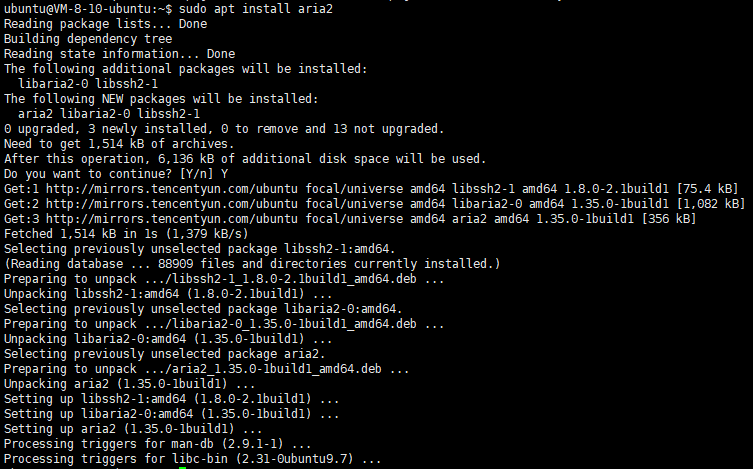
安装Aria2

sudo apt install aria2

image.png

配置Aria2配置文件

Arai2默认会从$HOME/.aria2/aria2.conf$XDG_CONFIG_HOME/aria2/aria2.conf这两个位置读取配置,为了方便管理,我们可以将配置文件放到/etc/aria2/aria2.conf,以方便管理。

创建/etc/aria2目录,新建并编辑/etc/aria2/aria2.conf配置文件

sudo mkdir /etc/aria2/
sudo vim /etc/aria2/aria2.conf

创建下载文件保存目录

mkdir /home/ubuntu/downloads

把以下配置内容写入到/etc/aria2/aria2.conf

# 设置加密的密钥
rpc-secret=12580
# RPC 开关
enable-rpc=true
# RPC 跨域(WEB 界面需要跨域)
rpc-allow-origin-all=true
# RPC 外部访问(false 的话只监听本地端口)
rpc-listen-all=true
# RPC 端口, 仅当默认端口被占用时修改
rpc-listen-port=6800
# 最大并行下载数(默认值:5)
#max-concurrent-downloads=5
# 单文件并行下载数
split=5
# 断点续传
continue=true
# 同服务器最大连接数
max-connection-per-server=5
# 最小文件分片大小, 下载线程数上限取决于能分出多少片, 对于小文件重要
min-split-size=10M
# 下载速度限制(0代表不限制)(示例值:500K、10M)
max-overall-download-limit=0
# 单文件速度限制
max-download-limit=0
# 上传速度限制
max-overall-upload-limit=0
# 单文件速度限制
max-upload-limit=0
# 断开速度过慢的连接
#lowest-speed-limit=0
# 设置请求头 referer
#referer=*
# 文件保存路径, 默认为当前启动位置
dir=/home/ubuntu/downloads
# 启用磁盘缓存
#disk-cache=0
# 文件分配方法
#file-allocation=prealloc

配置开机启动

sudo nano /etc/systemd/system/aria2.service
[Unit]
Description=aria2 Service
After=network.target

[Service]
Type=simple
User=www
Group=www
Restart=on-failure
RestartSec=5s
ExecStart=aria2c --conf-path=/etc/aria2/aria2.conf

[Install]
WantedBy=multi-user.target

此时,我们尝试下启动服务

sudo systemctl start aria2

然后查看服务状态

sudo systemctl status aria2

如果Active的状态是 active (running) ,则代表服务运行正常。

那我们就可以直接启用服务了,那么服务就会开机时自动启动。

sudo systemctl enable aria2

开放端口

防火墙放通 6800 端口

sudo ufw allow 6800
sudo ufw enable

imageb714790991761b6e.png

参考资料
